Alpha3d

Prompt-led creation

Turn an idea into a text to 3d starting point

A text to 3d workflow begins with a description of the object you want. Give Alpha3d a specific shape, material, and intended use, then inspect any generated result before treating it as a finished asset.

Free to start · no signup
Alpha3d landing visual showing a 3D creation concept
Illustration of a text-driven 3D workflow Blue teapot concept shown as a 3D object

Who needs a model from a written prompt?

Prompt-led creation is useful for exploring an object before committing to detailed modeling. The comparison is an illustration of that idea, not a promise that every prompt produces a matching result.

  • Written concept
  • Object concept

A visual concept still needs geometry and file checks before it enters a production workflow.

Software workflows for prompt-generated assets

Game prototyper

Describe a prop to test its silhouette in a level before spending time on detailed modeling.

Inspect the asset in your engine and budget time for topology, scale, and collision work. For the production criteria behind that review, see what is a game-ready 3d model.

what is a game-ready 3d model
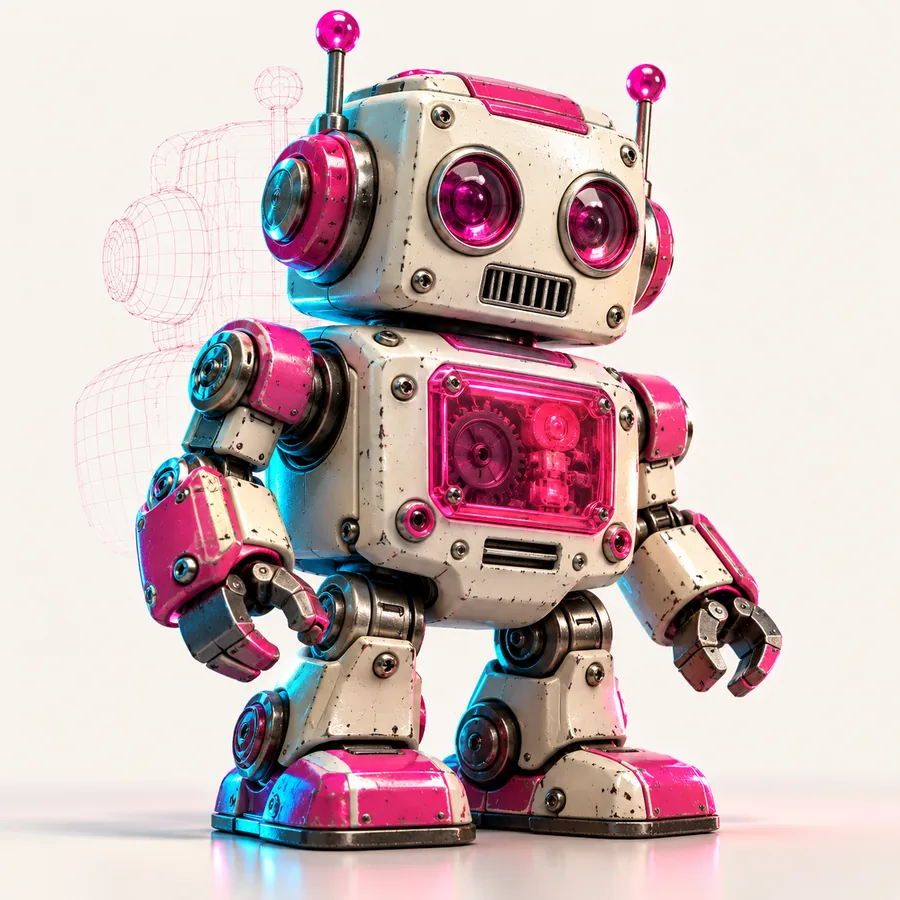
Product designer

Sketch a furniture or packaging idea in words when there is no approved reference image.

Compare the resulting concept with an image to 3d workflow once the product's appearance is defined.

image to 3d

Visualization artist

Explore a scene prop from a brief, then gather photos to resolve details the description leaves open.

Use multi-view to 3d as a separate route when several views of the same object are available.

multi-view to 3d

The tool block: choosing the right input

A written prompt and a set of reference photos solve different problems. Choose the input that matches what you already know about the object.

Written description Reference images
1

Best starting point

Written description

An idea with no fixed appearance

Reference images

An object whose appearance is already visible

2

Input to prepare

Written description

Object, shape, materials, and distinguishing features

Reference images

Clear views of the object

3

Shape constraints

Written description

Expressed in words and open to interpretation

Reference images

Visible in the supplied views

4

Hidden surfaces

Written description

Not specified unless described

Reference images

Not specified unless photographed

5

Typical revision

Written description

Rewrite an ambiguous detail

Reference images

Improve framing or add another view

6

Before import

Written description

Check the resulting geometry and orientation

Reference images

Check the resulting geometry and orientation

Import steps begin with a clear object brief

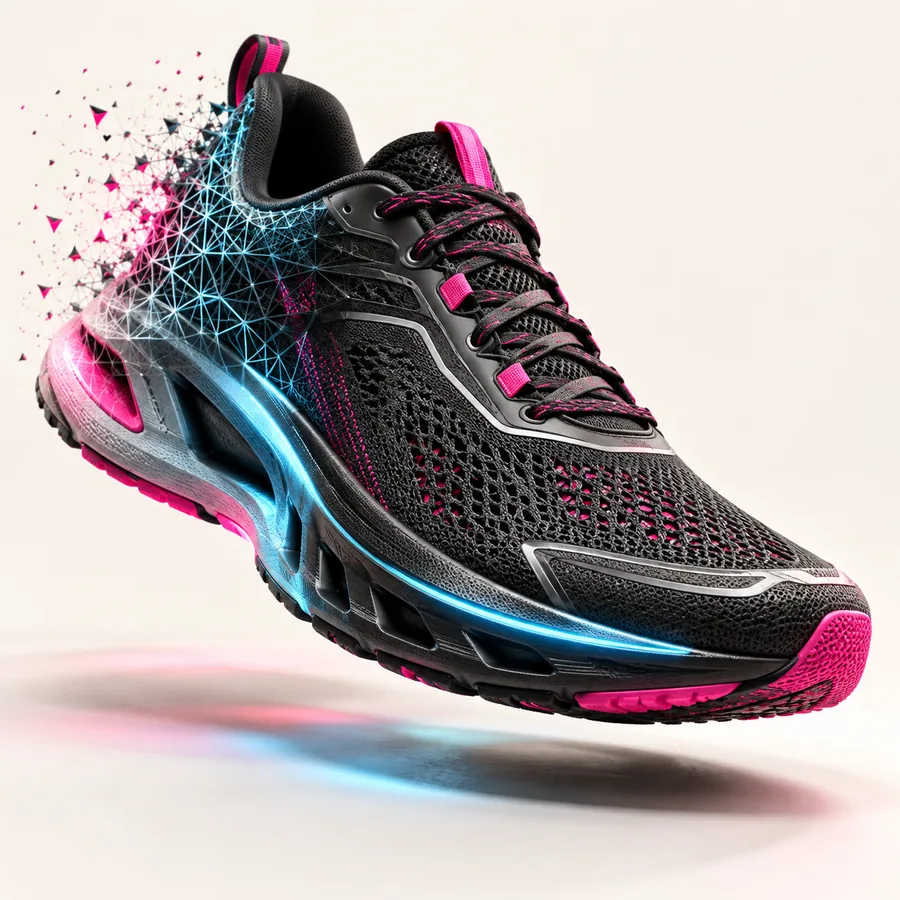
These example visuals illustrate the kinds of single-object prompts to prepare. They are not a record of the exact inputs or settings used to make the pictured assets.

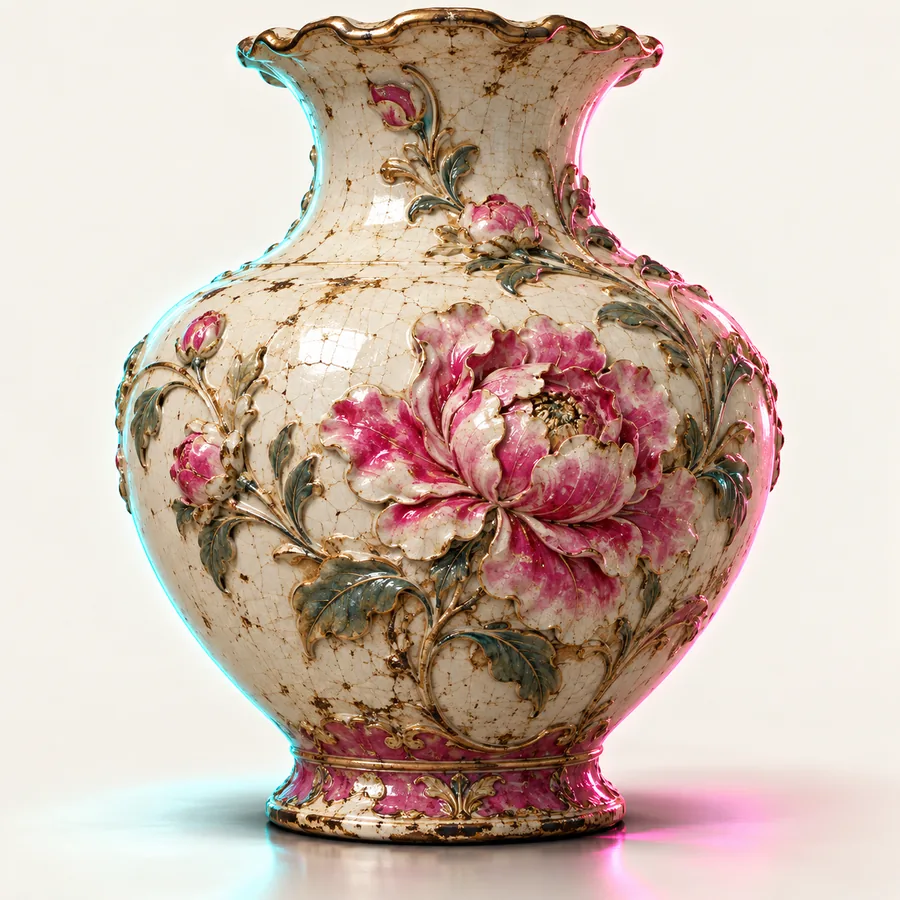
  • Example 3D object visual Household object
    Input to try: one freestanding household object, with its overall shape, material, and most visible feature specified.
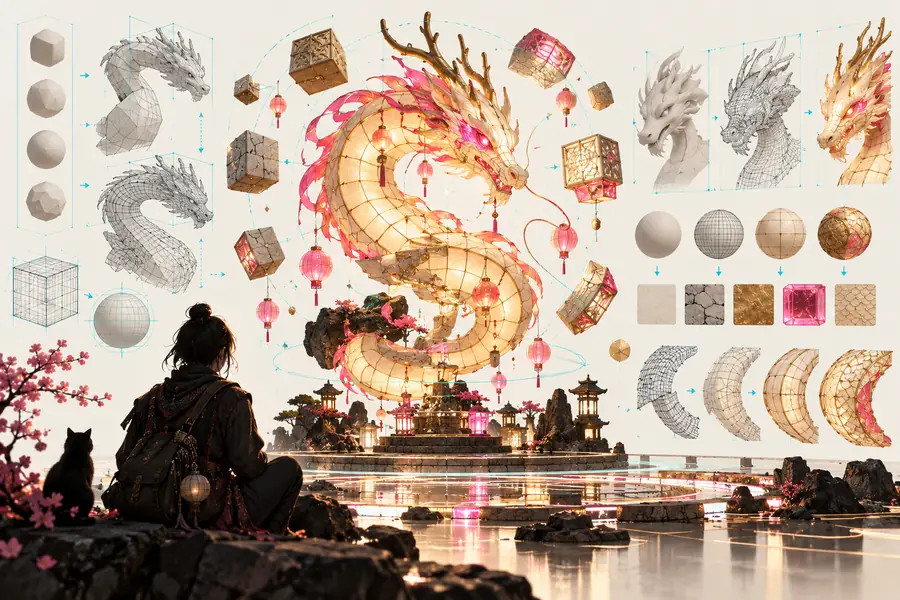
  • Second example 3D object visual Product prop
    Input to try: one compact product prop, described by silhouette, surface finish, and two distinguishing parts.
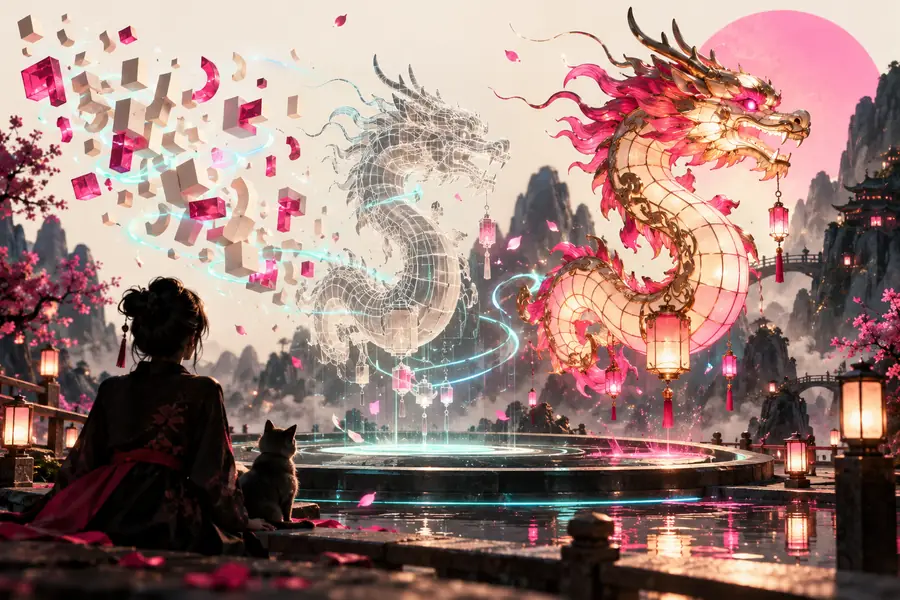
  • Third example 3D object visual Scene asset
    Input to try: one decorative scene asset, with a simple shape and a clearly stated material.

Common import errors and limitations

A convincing preview does not establish that a model is ready for every editor, engine, or fabrication process.

The silhouette differs from the brief

Words such as modern or compact leave major shape decisions open to interpretation.

WorkaroundName the object's main parts, proportions, and distinctive edges in the prompt.

The mesh needs cleanup

An attractive render cannot confirm topology, watertightness, or suitability for animation.

WorkaroundInspect the mesh in your modeling software and repair it for the intended use.

Scale or orientation is wrong

A model may arrive at an inconvenient size or face a different direction in a destination scene.

WorkaroundCheck units, axes, and transforms after import; set the intended dimensions in the destination software.

A desired file format is unavailable

Do not assume a particular export format or direct compatibility with your chosen application.

WorkaroundCheck the available download options before planning an import pipeline.

Troubleshoot the import in three passes

Describe one object

Write a concise brief naming its shape, major parts, material, and intended role. Separate must-have features from stylistic suggestions.

Inspect the result

Rotate the concept and look for missing parts, distorted surfaces, and details that contradict the brief. Revise the description if the object itself is wrong.

Check the destination

If a suitable asset and export option are available, import it into your software. Verify scale, orientation, materials, and mesh quality there.

Move from brief to inspection

Describe the object you want to explore

Start with one specific object rather than a whole scene. State its silhouette and essential parts, then evaluate the result against your brief and the requirements of your destination software.

  • Specify shape and material
  • Inspect the resulting asset
  • Verify before importing

Text-to-3D FAQ

Describe a single object, including its main shape, parts, and material, then submit the prompt through the available creation workflow. Inspect the result before downloading or importing it; a prompt does not guarantee production-ready geometry.

Start with the object name, silhouette, key components, and surface material. Add details that distinguish it from similar objects, but avoid conflicting instructions or a long list of unrelated items.

Access terms depend on the creation service and may change. Check the terms and any limits shown at the destination before assuming generation, downloads, or a particular export option is included.

Not necessarily. Check its available file format, scale, orientation, topology, materials, and performance needs in your own pipeline before using it as a game asset.

Create a model
Create a model